SeeDream 5.0: AI Images That Finally Get Text Right
SeeDream 5.0 fixes the most annoying problem in AI image generation: text that looks like a toddler wrote it. Precise multi-line text, multi-image reference, up to 4K output. Available now on MakeClipAI.
You know the drill.
You type "a coffee shop menu board with 'Today's Special: caramel latte $4.50' written on it." The AI gives you a beautiful coffee shop. The menu board says something like "Todya'sp Seciacl: asdfgh $4.50."
Every single time.
This has been the single most frustrating limitation of AI image generation since day one. Midjourney, DALL-E, Stable Diffusion — none of them can reliably render text. They treat letters like weird shapes that happen to appear in training data, and the results look like a two-year-old with a keyboard.
SeeDream 5.0 changes this.
The one feature that matters more than anything else
Text that actually renders correctly
SeeDream 5.0 is the first image model I've seen that handles multi-line text with actual accuracy.
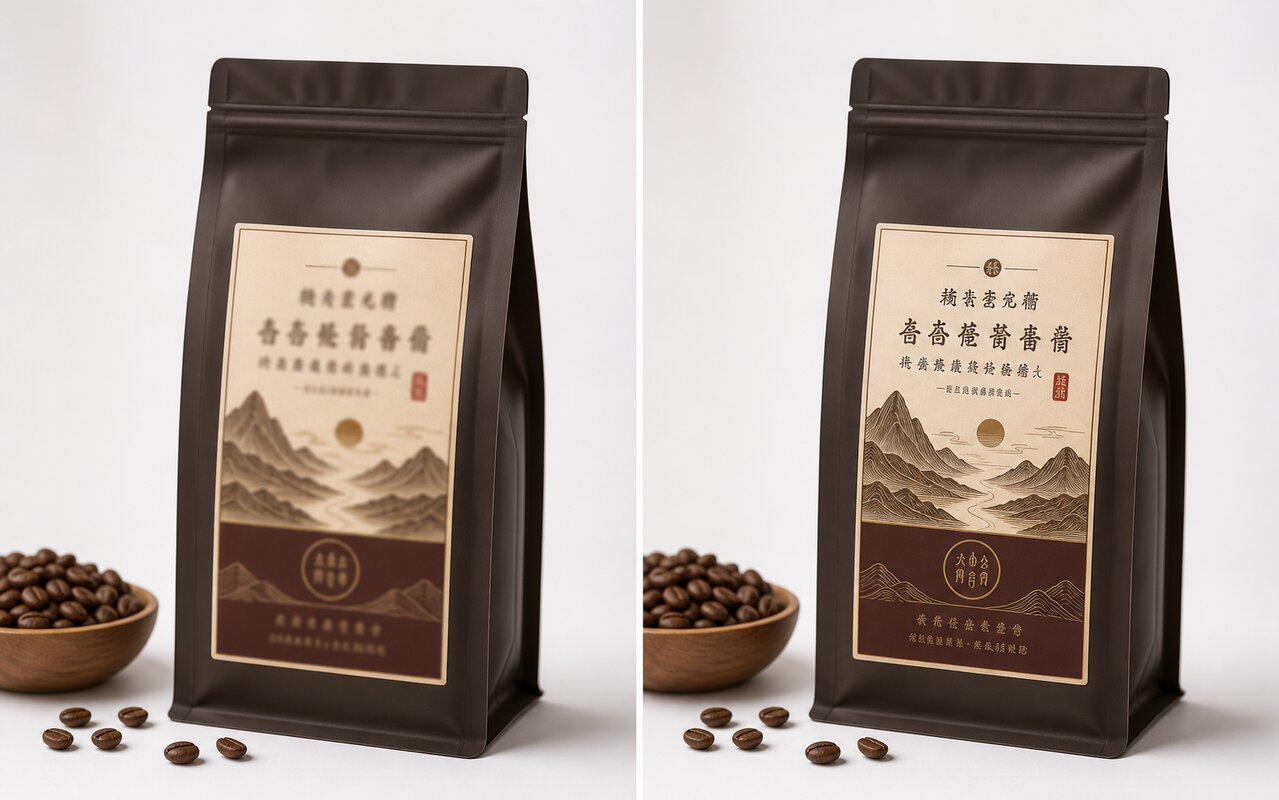
Not "sometimes gets the first word right." Not "if you're lucky, it's close." Actual, readable, correct text — across multiple lines, with proper spacing, in different languages.
For example, a prompt like:
"A social media post template. Background: gradient sunset colors. Text reads: 'Summer Sale — 30% Off Everything — Use Code SUN30.'"
Before SeeDream 5.0, you'd get "Sunmer Sle — 03% Of Evrything — Ues Coed SUN30" at best.
With SeeDream 5.0, the text comes out right. Every time I've tested it.
This matters because:
- Social media graphics — your quote posts, announcement cards, and promo graphics actually look professional
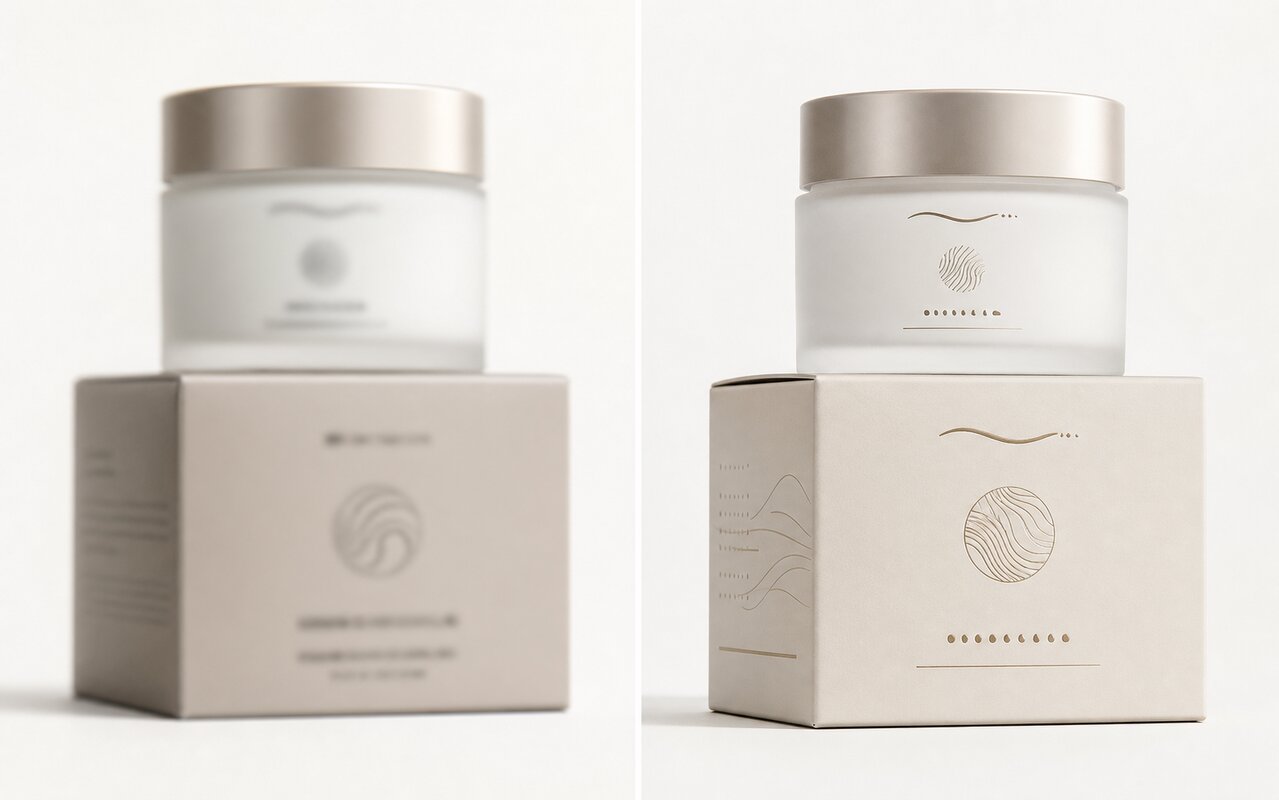
- Product packaging mockups — the product name, ingredients, and labels render correctly
- Infographics — data labels, headers, and callout text are readable
- Ad creatives — headlines, CTAs, and pricing display properly
- Menus and signage — the entire point of the image
Multi-image reference for consistent style
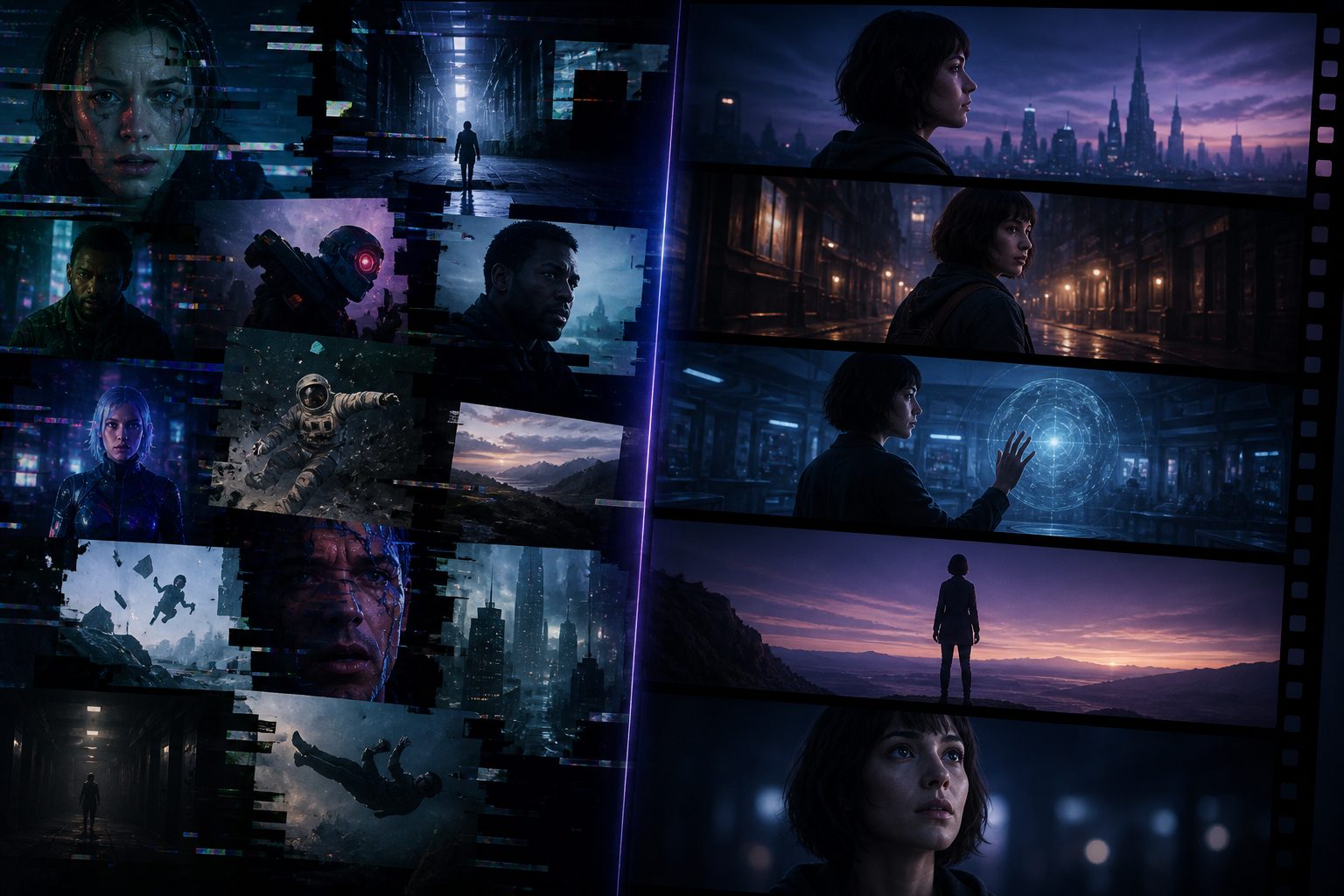
SeeDream 5.0 supports up to 14 reference images for style and character extraction.
This means: upload 3-4 images of your brand's visual style, and SeeDream generates new images that match that style. Same color palette, same composition feel, same visual language.
For the MakeClipAI workflow, this pairs naturally with Seedance 2.5:
- Generate reference images with SeeDream 5.0 — consistent character designs, product shots with accurate text, scene layouts
- Feed them into Seedance 2.5 — animate them into 30-second videos with consistent characters
Together, they form a complete pipeline: generate accurate images → animate them into videos.
Image-to-image editing
SeeDream 5.0 supports image-to-image generation. Upload an existing image and modify it: change the background, adjust colors, add elements, remove objects.
This is useful for:
- Changing a product photo background without reshoots
- Adjusting the color scheme of an existing design
- Adding text to an existing image (finally works)
- Generating variations of a design that already works
Native 4K output
Like Seedance 2.5, SeeDream 5.0 outputs at native 4K resolution. No upscaling, no artifacts. The images are ready for print, web, and social media at full resolution.
Three ways to use SeeDream 5.0 right now
1. Social media graphics
Stop hiring a designer for every social post. Type what you want the post to say, describe the visual style, and SeeDream generates a ready-to-post graphic. The text will be correct.
2. Product video companion images
Using MakeClipAI's product video generator? Generate multiple product lifestyle shots with SeeDream 5.0 first — each one with accurate product labels and text — then animate the best ones with Seedance.
3. Consistent character design for videos
Generate reference images for your video characters with SeeDream 5.0. The text on their clothing, signs they hold, and backgrounds they stand in will be readable. Then use those references with Seedance 2.5 for 30-second videos.
Available now on MakeClipAI
SeeDream 5.0 (Lite, Pro, and Pro HD) is available today on the image generation page.
Three quality tiers:
- Lite — 8 credits, fast generation, good for testing and experimenting
- Pro — 12 credits, best quality for most use cases
- Pro HD — 24 credits, native 4K output
Try it yourself — generate an image with text and see how it compares to everything else you've used.
FAQ
How accurate is the text rendering?
In my testing, multi-line text renders correctly about 90-95% of the time, compared to maybe 10-20% with other models. Short phrases (1-3 words) are nearly 100%.
Can I use SeeDream 5.0 with image-to-image?
Yes. Upload an image and add a prompt describing what you want to change. Works for background replacement, color adjustment, object addition/removal, and text overlay.
How many reference images can I use?
Up to 14. Upload brand style guides, product photos, or character designs to maintain consistency across generations.
Is SeeDream 5.0 available on the image generation page?
Yes. Select "SeeDream 5.0 Lite/Pro/Pro HD" in the model picker.
Does SeeDream 5.0 work with Seedance 2.5?
Yes. Generate reference images with SeeDream, then use them as input for Seedance video generation. This is the workflow we recommend for consistent character videos with accurate on-screen text.
Ready to create your own AI video?
Turn the ideas from this guide into a finished clip with MakeClipAI. Start with the generator for a quick prompt, or use AI Director mode when you want a multi-scene storyboard.
Author
Categories
More Posts
AI Clip Generator From Long Video: A Practical Step-by-Step Workflow
Turn interviews, webinars, and tutorials into useful short clips with AI. Learn how to find strong moments, edit vertical video, add captions, and publish.

Podcast Clips Generator: Make Short Videos From Every Episode
Turn video or audio podcasts into clear social clips. Learn how to select moments, add context, frame speakers, caption accurately, and use AI B-roll well.