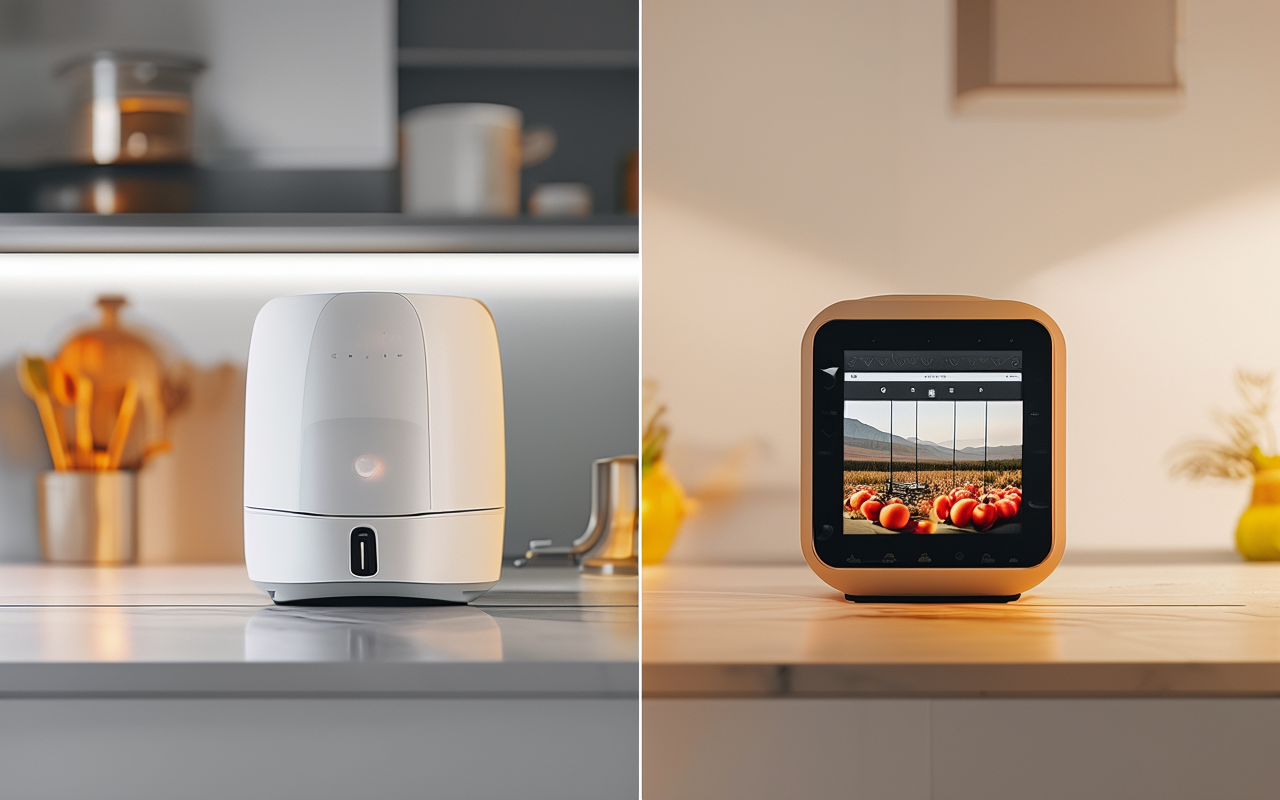
How to make product demo videos with AI (step by step, no editing skills needed)
I'm not a video editor. But I make product demo videos for my store every week using AI. Here's the exact step-by-step process I follow.
I remember the first time I tried to make a product demo video. I spent two hours recording, re-recording, trying to get my hands to look natural holding a spatula. The final result was shaky, poorly lit, and I still didn't upload it for another three days.
That was last year. Now I make product demo videos in under 15 minutes with AI. No camera. No lighting setup. No editing software.
Here's exactly how I do it.
What makes a good product demo video
Before I touch any tool, I ask myself one question: what does the customer actually need to see?
After running about 40 AI product demos, here's what I've learned works:
- Show the problem first — the messy drawer, the tangled cables, the cluttered counter
- Show the product solving it — clean, clear, in action
- Show the result — everything organized, functional, beautiful
- Keep it under 10 seconds — unless it's a complex product, shorter always wins
That's the formula. Problem → Solution → Result. It's simple, but most people skip the first step and go straight to "here's my product."
Step 1: Write a scene-by-scene breakdown
I used to write one big paragraph as a prompt. The AI would interpret it however it wanted, and I'd get random clips that didn't tell a story.
Now I write scenes. Each scene is one clear visual.
Here's a real breakdown I used for a cable management kit:
Scene 1 (3 seconds): A messy desk with cables everywhere — phone charger, laptop cord, monitor cable. Close-up on the tangled wires. Frustrating, chaotic feel.
Scene 2 (3 seconds): Someone clips the cable organizer onto the edge of the desk. Hands only, no face. The action is smooth and satisfying.
Scene 3 (3 seconds): The same desk, now clean. Cables hidden behind the organizer. Everything neat. A "before and after" feel without showing the actual before.
Scene 4 (2 seconds): The product alone on a clean surface. Text overlay: "Your desk, but better."
Total runtime: 11 seconds. That's the sweet spot for Instagram Reels and product pages.
Step 2: Pick your scene settings
AI video tools need a bit of direction on the visual style. I keep it simple with three settings:
- Lighting: Bright, natural, studio-like. Avoid dark or moody for product demos.
- Camera angle: Straight-on or slightly top-down. Never Dutch angle.
- Background: Clean, minimal, not distracting.
I add these details to each scene in the prompt. It takes 30 seconds and makes a huge difference.
Step 3: Generate and pick the winner
I use MakeClipAI for this. I paste my scenes, pick a model that handles product shots well, and generate 3 versions.
Here's what I look for in the outputs:
- Product consistency — does the cable organizer look the same in every scene?
- Motion smoothness — no jerky movements or morphing shapes
- Scene flow — does it tell the story in order?
I usually get one solid version out of three. Sometimes two. Rarely zero.
Step 4: Add the bare minimum of text
Product demo videos don't need a lot of text. Here's what I add:
- The product name (top-left, small)
- One benefit statement (center, big, appears at the result scene)
- A "Shop Now" or "Learn More" at the end
I do this in whatever simple editor I have. CapCut. Canva. Even TikTok's built-in editor. It takes 2 minutes.
Step 5: Export and place it everywhere
One video, three platforms:
- Product page: Embedded as the hero video
- Instagram Reel: Uploaded with a caption describing the problem
- Facebook Ad: Used in a simple traffic campaign
I don't re-edit for each platform. The same 10-second clip works everywhere. The only thing I change is the caption.
A real example
Last month I made a demo for a magnetic knife strip. Here's what the process looked like:
| Step | What I did | Time |
|---|---|---|
| Wrote 3 scenes | Messy drawer → knife strip on wall → clean counter | 3 min |
| Generated 3 versions | Pick one that looked clean and stable | 4 min |
| Added text | "Knives, but make them wall art" | 2 min |
| Exported | 8-second MP4 | 1 min |
Total: 10 minutes. The video went on my Shopify product page and an Instagram Reel. That Reel has 2,800 views as of this morning. The product page conversion rate went from 1.8% to 3.1% in the two weeks after I added the video.
What NOT to do
I made plenty of mistakes so you don't have to:
- Don't start with the product. Show the problem first. Your customer needs to feel the pain before they want the solution.
- Don't use complex prompts. "Cinematic 4K close-up slow-motion macro shot with bokeh" — that's too much. The AI gets confused. Keep it simple.
- Don't generate once and give up. The first output is rarely the best. Generate 2-3 times and pick.
- Don't over-edit. AI video looks clean. Adding too many effects or filters makes it look cheap. Let the AI output breathe.
A quick word on tools
I mentioned MakeClipAI because that's what I use. But the workflow works with any AI video tool that supports scene-based generation. The key isn't the tool — it's the scene structure. If you write clear scenes with problem → solution → result, you'll get a good demo regardless of which model or platform you use.
That said, I've tested this on 4 different tools and MakeClipAI is the fastest for multi-scene product videos. The per-scene generation saves me from stitching clips together manually.
Related reading
- Best AI video generator for small business — see how different tools compare for product demos
- Stop rewriting AI video prompts from scratch every time — turn winning demo prompts into reusable templates
Bottom line
Product demo videos don't need a camera, an editor, or any technical skills. They need a clear story, broken into scenes, fed into an AI tool that can handle it.
I went from dreading video creation to actually enjoying it. And my store's conversion numbers prove it works.
Ready to make your first product demo? Start free on MakeClipAI — no editing required. Try AI Director mode to automatically break your product story into a multi-scene video.
Ready to create your own AI video?
Turn the ideas from this guide into a finished clip with MakeClipAI. Start with the generator for a quick prompt, or use AI Director mode when you want a multi-scene storyboard.
Author
Categories
More Posts

How to make YouTube Shorts with AI (from one product photo to a finished Short)
I post AI-made YouTube Shorts three times a week without a camera or editor. Here is my exact process — pick the right photo, write a 3-beat script, generate vertical clips, publish.
How to make a multi-scene video with AI Director (one brief in, full video out)
AI Director splits your idea into a storyboard, routes each scene to the right model, and generates a complete multi-scene video. Here's the step-by-step process with a real example.