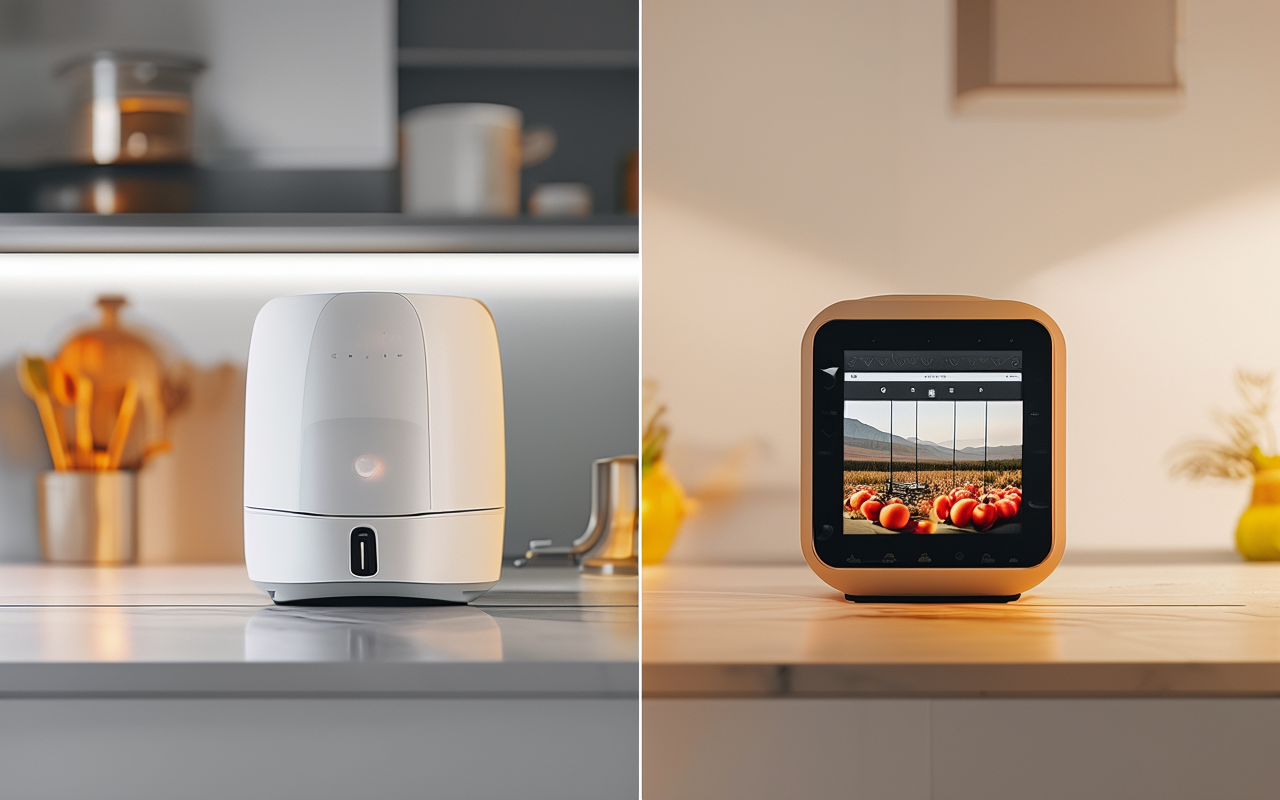
Image to video: How to animate your product photos with AI
Stop reshooting product videos. Here's how to turn photos you already have into AI-generated product demos, social clips, and ads — with tips for consistent results.
You already have product photos. Probably hundreds of them. What if you could turn them into videos without a reshoot?
That's what Image-to-Video does. Upload a reference image, add a camera motion prompt, and the AI animates it. The result is a short video that keeps your product looking the same — because it's literally your product in every frame.
Here's how to get good results with it.
Why Image-to-Video is better than Text-to-Video for products
Text-to-Video generates everything from scratch. That's powerful, but it also means the AI decides what your product looks like. If you're selling a specific widget, Text-to-Video might give you a widget that looks similar but isn't quite yours.
Image-to-Video solves this. It takes your actual product photo and animates it within the scene. The product stays recognizably yours. The packaging, the color, the details — they're all from your photo.
I use Text-to-Video for the background and scene, then Image-to-Video for the product itself. Best of both worlds.
My workflow for product animations
Step 1: Pick the right reference image
Not every photo works well. These factors matter most:
- Clear subject isolation. Photos where the product is the main focus work best. Busy backgrounds confuse the AI.
- Good lighting. Well-lit photos produce smoother animations. Harsh shadows cause flickering.
- Straight-on or slight angle. Extreme angles (top-down, close-up macro) work less consistently.
- High resolution. 1024x1024 or higher. The AI needs enough pixels to understand the product shape.
My go-to: a white-background product shot, 2000x2000 pixels, studio lighting. This consistently produces clean results.
Step 2: Write the motion prompt
The motion prompt tells the AI how to move the camera. Be specific:
| Instead of this | Try this |
|---|---|
| "animate this" | "slow zoom in on the product" |
| "make it move" | "gentle orbit from left to right, soft parallax" |
| "camera motion" | "push-in reveal with subtle depth of field" |
My most reliable prompts:
- Product reveal: "slow zoom in, elegant camera motion, soft studio lighting"
- Lifestyle scene: "gentle pan right, warm natural lighting, lifestyle atmosphere"
- Detail shot: "subtle camera push toward the product, shallow depth of field"
- Social clip: "quick zoom out then settle, vibrant lighting, social media style"
Step 3: Pick the right model
Different models handle Image-to-Video differently:
| Model | Image-to-Video quality | Best for |
|---|---|---|
| Kling 3.0 | Excellent | Product reveals, commercial-style animations |
| Seedance 2.0 | Good | Adding character motion around the product |
| Hailuo | Decent | Artistic/stylized animations |
| LTX Video | Basic | Quick tests, draft concepts |
Kling is my default for product Image-to-Video. It maintains the most product consistency.
Step 4: Generate and iterate
I generate 3-5 variations of each image with slightly different motion prompts. Not all of them work — maybe 2 out of 5 are usable. That's normal.
Don't try to make one perfect generation. Generate multiple, pick the best one, move on.
Real example: A kitchen tool product video
I used this workflow for a friend's kitchen gadget store:
Reference image: A stainless steel vegetable chopper on a white background.
Motion prompt: "slow orbit from left, premium product presentation, soft diffused lighting"
Model: Kling 3.0
Cost: ~60 credits per generation
Result after 4 attempts: A 5-second product video that looked like it came from a TV commercial. My friend used it as the hero video on their product page. Conversion rate went up 12% in the first week.
The whole process took about 15 minutes. A professional video shoot would have cost $300+ and taken a week.
When NOT to use Image-to-Video
It's not a magic bullet. These scenarios still need Text-to-Video or AI Director:
- Abstract concepts — you don't have a reference image for something that doesn't exist yet
- Multi-scene stories — Image-to-Video handles one scene at a time. Use AI Director for multi-scene projects
- Complex motion — the AI can only do camera motion, not scene changes or object transformations
- Anime/character work — reference photos of people may not animate naturally. Seedance Text-to-Video is better for this
Tips I learned the hard way
-
Crop your image to the right aspect ratio before uploading. Don't let the AI guess. If you want 16:9, crop it to 16:9 first.
-
Don't use images with text on them. The AI will try to animate the text, and it'll look like a glitchy mess.
-
Remove the background first. A transparent or white-background image animates much cleaner than one with a complex background. I use remove.bg for this.
-
Match lighting between image and prompt. If your product photo has cool lighting, don't ask for warm sunset lighting. The AI will fight itself trying to reconcile them.
-
Test on LTX before spending Kling credits. LTX is cheaper and faster. Run 5 test prompts, find the best one, then regenerate it on Kling for the final output.
Bottom line
Image-to-Video is the most underrated feature in AI video tools. Everyone focuses on generating videos from scratch. But if you already have product photos — which every business does — you can turn them into professional-looking videos in minutes.
The quality gap between a $0.50 AI animation and a $500 video shoot is narrowing fast. For most product videos, social clips, and ad creatives, Image-to-Video is good enough. And "good enough" that you can produce daily is better than "perfect" that you produce once.
For more complex projects, AI Director mode combines image-to-video with multi-scene storytelling — describe your product and watch the AI build a full storyboard. You can also start from the AI video generator when you already have a prompt or product photo ready.
Ready to create your own AI video?
Turn the ideas from this guide into a finished clip with MakeClipAI. Start with the generator for a quick prompt, or use AI Director mode when you want a multi-scene storyboard.
作者
分类
更多文章

How I use AI to make product videos for my Shopify store (no video skills needed)
I run a small ecommerce store and I'm not a video editor. Here's exactly how I use AI video generators to create product demos, ads, and social clips that actually convert — without spending hours in Premiere.
From prompt to video: my complete AI video workflow for Instagram
I make 5 AI videos for Instagram every week. Here's my complete workflow from blank page to published Reel — including the prompts I use.